
Using public WiFi in 30 countries changed our threat model completely. A $50 hardware key is now non-negotiable. Here’s why — and which one to buy.
Nobody thinks about digital security until something goes wrong.
We didn’t. For the first eighteen months of working remotely across multiple countries, our security setup was the same as most people’s: strong passwords, a password manager, and the authenticator app on our phone for two-factor authentication. We felt reasonably secure. We weren’t thinking about it much. There was always something more immediate to deal with — a flight to catch, a client deadline, a coworking space with unreliable WiFi that needed troubleshooting.
Then, in a café in Tbilisi, Georgia, our Google account sent a login notification from a location we didn’t recognize.
Nothing was compromised. We caught it in time, locked the account, changed credentials, and spent the next three hours feeling the specific anxiety of realizing that a system you trusted had a vulnerability you hadn’t adequately addressed. The attempted access had come through a phishing link in an email that had gotten past our usual skepticism — the email looked legitimate, the URL looked close enough, and we’d been distracted when we clicked it.
That afternoon we bought our first hardware security key. Eighteen months later, we carry two — a primary and a backup — on every trip, and we consider them as non-negotiable as a passport.
This article explains why, and which key to buy.
The Problem With How Most Remote Workers Do Security
Before we get into hardware keys specifically, it’s worth being honest about why the standard remote worker security setup — password manager plus phone-based two-factor authentication — is less robust than most people assume.
Phone-based 2FA has real vulnerabilities.
When you enable two-factor authentication with an authenticator app like Google Authenticator or Authy, the second factor is a time-based code generated on your phone. This is substantially more secure than no 2FA at all. It’s not as secure as most people believe.
The vulnerabilities fall into three categories.
SIM swapping. This is the most well-documented attack vector. A criminal contacts your mobile carrier, impersonates you using personal information gathered from data breaches or social media, and convinces the carrier to transfer your phone number to a SIM they control. Once they have your number, SMS-based 2FA codes are delivered to them rather than you. Authenticator apps are more resistant to this than SMS codes — but not immune, because the same social engineering that gets someone your number can sometimes get them access to account recovery flows.
Phishing. A sophisticated phishing page can capture both your password and your authenticator code in real time, logging in to your actual account immediately with both credentials before the time-based code expires. This is not a theoretical attack — it’s been used in documented breaches of corporate accounts and it’s effective against standard authenticator-based 2FA.
Device compromise. If your phone is compromised by malware, your authenticator app codes can be read. If your phone is lost or stolen and someone bypasses the lock screen, your authenticator app is accessible. Phone security is robust but not absolute.
Public WiFi is not the threat it was, but it’s not neutral either.
Modern HTTPS encryption means that the classic “man in the middle” attack on public WiFi — where someone intercepts your unencrypted traffic and reads your credentials — is substantially harder than it was in 2015. Most security professionals will tell you that public WiFi is not the primary threat vector for remote workers in 2025.
What hasn’t changed: public WiFi networks can be spoofed. A malicious actor can create a WiFi network named “CoffeeShop_Free” that looks identical to the legitimate café network. Devices that have previously connected to networks with that name may auto-connect. Once connected, certain types of traffic — not protected by HTTPS, or vulnerable to SSL stripping attacks — can be intercepted.
More practically: the combination of public WiFi use, frequent travel across multiple countries, and the pattern of logging into accounts from new locations and new IP addresses creates an attack surface that a home-based worker who always logs in from the same network simply doesn’t have. The risk isn’t dramatic or inevitable. It’s a background elevation of probability that compounds over time.
Account recovery is the weakest link.
The most underappreciated security vulnerability for remote workers isn’t the login process — it’s the account recovery process. Most services have account recovery flows that can be initiated with an email address, a phone number, or answers to security questions. These flows are designed to help legitimate users who’ve lost access to their accounts. They can also be exploited by attackers who’ve gathered enough personal information.
A hardware security key addresses this by making physical possession of the key a requirement for account access and, in some configurations, account recovery. There is no remote attack that defeats this requirement. The key has to be physically present.
What a Hardware Security Key Actually Does
A hardware security key is a small physical device — roughly the size and shape of a USB drive — that stores cryptographic credentials and uses them to authenticate your identity when logging into accounts that support hardware 2FA.
The authentication process works like this: you enter your username and password normally, and then instead of entering a code from an app, you insert the key into a USB port (or tap it against your phone using NFC) and touch the gold contact on the key. The key generates a cryptographic response that the service verifies. Authentication complete.
What makes this fundamentally more secure than authenticator app codes:
The key cannot be phished. When you register a hardware key with a service, the key stores a cryptographic credential that is bound to the specific domain of that service. If a phishing page asks for hardware key authentication, the key will refuse — because the domain doesn’t match the registered domain. The key knows the difference between google.com and g00gle.com, even if you don’t notice it in the URL bar.
The key cannot be remotely accessed. There is no way to steal the credentials stored on a hardware key without physical access to the key itself. Remote attackers, malware, and SIM swappers cannot extract what’s on the key. The only way to use the key is to have it.
The authentication requires physical presence. Touching the contact on the key is a deliberate proof-of-presence action. Automated attacks cannot simulate this touch. Even if an attacker had your username, password, and the key itself in hand, they would need to physically press the contact — which requires human presence at the moment of authentication.
The key is offline. Hardware security keys have no internet connection, no battery, and no software that can be updated remotely. They generate cryptographic responses using stored credentials and a challenge from the server. There is no attack surface for network-based exploitation.
Who Is This For — And Who Can Skip It
Before we get into the product recommendations, an honest scoping of the audience.
This matters most for:
Remote workers who regularly use public WiFi in unfamiliar locations. The combination of untrusted networks and frequent authentication from new IP addresses is exactly the profile that targeted attacks look for.
Anyone with client data, intellectual property, or business accounts that would cause real damage if compromised. A freelance developer with client code repositories, a consultant with client documents in cloud storage, a writer with unpublished work — the cost of a breach is not just personal inconvenience.
Anyone who has ever reused a password across multiple services. If credentials from one service breach can unlock another service, the attack surface is much larger than it appears. A hardware key doesn’t fix credential reuse, but it provides a layer that can contain the damage.
Remote workers who’ve experienced suspicious login attempts or actual breaches. If it’s happened once, the probability of it happening again is higher than baseline, and the cost of that knowledge is too low not to act on.
It matters less for:
People who work exclusively from trusted home networks with no client data and no accounts that would cause significant damage if compromised. The risk exists but it’s lower, and the urgency is lower.
People who are already using a password manager with unique strong passwords for every account and who are vigilant about phishing. Hardware keys add a meaningful layer, but the baseline security is already substantially better than average.
People whose primary accounts don’t support hardware 2FA. Coverage has expanded dramatically in the past three years, but not every service supports hardware keys. Check which of your critical accounts support FIDO2/WebAuthn before purchasing.
The Hardware Security Keys Worth Buying in 2025
We’ve tested six hardware security keys over the past two years. Four are worth recommending. Here they are.
#1 — The Best Hardware Security Key for Most People

- POWERFUL SECURITY KEY: The YubiKey 5 NFC is the most versatile physical passkey, protecting your digital life from phish…
- WORKS WITH 1000+ ACCOUNTS: Compatible with popular accounts like Google, Microsoft, and Apple. A single YubiKey 5 NFC se…
- FAST & CONVENIENT LOGIN: Plug in your YubiKey 5 NFC via USB-A and tap it, or tap it against your phone (NFC), to authent…
The YubiKey 5 NFC is the hardware security key we recommend to almost everyone who asks, without significant qualification. Yubico has been manufacturing hardware security keys longer than any competitor, the 5 NFC is their mainstream product, and the combination of USB-A connectivity and NFC for phone authentication covers every device most remote workers use.
The NFC capability is the feature that makes the 5 NFC the right choice over cheaper USB-only alternatives. Tap the key against an iPhone or Android phone and it authenticates the same way inserting it into a laptop does — a single tap, no fumbling with adapters, no carrying a separate key for mobile authentication. For travelers who frequently authenticate on multiple devices, this matters practically every day.
Compatibility is essentially universal for the hardware 2FA use case. The YubiKey 5 NFC supports FIDO2 (the current standard), FIDO U2F (the predecessor, still used by many services), OTP, and several enterprise protocols. Every major service that supports hardware keys — Google, Microsoft, GitHub, Dropbox, Twitter/X, Facebook, Coinbase, and hundreds of others — works with this key.
Build quality is exceptional. The key is crush-resistant, water-resistant, and has no moving parts. Yubico claims the keys are rated for over 100,000 uses of the touch contact, and the mechanism shows no wear after eighteen months of daily use in our testing. The form factor is small enough to live on a keychain without being noticeable.
Setup is straightforward for the major platforms. Google and Microsoft walk you through hardware key registration in their security settings with clear step-by-step instructions. GitHub, Dropbox, and most other services are similarly well-documented. We set up the key on six major platforms in under thirty minutes on the first day.
Specifications:
- Connections: USB-A, NFC
- Protocols: FIDO2, FIDO U2F, OTP, OpenPGP, PIV
- Weight: 6g
- Water resistant: Yes (IP68)
- Crush resistant: Yes
- Works with iPhone: Yes (NFC)
- Works with Android: Yes (NFC)
Who it’s for: Most remote workers. If you’re buying your first hardware security key and you’re not sure which to get, this is the answer.
#2 — The Best Key for USB-C Laptops and Modern Devices

- POWERFUL SECURITY KEY: The YubiKey 5C NFC is the most versatile physical passkey, protecting your digital life from phis…
- WORKS WITH 1000+ ACCOUNTS: Compatible with popular accounts like Google, Microsoft, and Apple. A single YubiKey 5C NFC s…
- FAST & CONVENIENT LOGIN: Plug in your YubiKey 5C NFC via USB-C and tap it, or tap it against your phone (NFC), to authen…
The YubiKey 5C NFC is the same key as the 5 NFC above with one change: USB-C instead of USB-A. If your primary laptop is a recent MacBook, a modern Windows ultrabook, or any device that has moved exclusively to USB-C, the 5C NFC connects directly without an adapter.
The NFC capability is identical to the 5 NFC. The protocols, build quality, compatibility, and security model are identical. The only difference is the connector.
For travelers who carry a USB-A to USB-C adapter anyway (which we do, for other reasons), the choice between the 5 NFC and the 5C NFC is functionally irrelevant. For travelers who have eliminated USB-A from their setup entirely and don’t want to carry an adapter, the 5C NFC is the cleaner solution.
One practical note: if you’re buying two keys (a primary and a backup, which we recommend), consider getting one 5 NFC and one 5C NFC. Different connector types means you can authenticate from any device regardless of what ports are available — including on older devices or borrowed hardware in an emergency.
Specifications:
- Connections: USB-C, NFC
- Protocols: FIDO2, FIDO U2F, OTP, OpenPGP, PIV
- Weight: 6g
- Water resistant: Yes (IP68)
- Crush resistant: Yes
- Works with iPhone: Yes (NFC)
- Works with Android: Yes (NFC)
Who it’s for: USB-C laptop users who want to connect directly without an adapter. Consider pairing with a 5 NFC as a backup.
#3 — The Best Budget Hardware Security Key

- SOLVE THE PASSWORD PROBLEM: Identiv’s uTrust FIDO2 NFC Security Key allows individuals, businesses, and government agenc…
- SIMPLE AND SECURE: FIDO Alliance certified. The cryptographic security model of the device eliminates the risk of phishi…
- MULTI-PROTOCOL: Supports FIDO2, FIDO U2F, and WebAuth enabling strong multi-factor authentication, removing the necessit…
Google manufactures the Titan Security Key primarily for use with Google accounts, and it was designed by a team that understands the Google authentication infrastructure better than any external manufacturer. For users whose critical accounts are primarily Google — Gmail, Google Drive, Google Workspace — the Titan key is worth serious consideration.
The FIDO2 and FIDO U2F compatibility means it works with any service that supports hardware 2FA, not just Google. We’ve tested it with GitHub, Dropbox, and Microsoft accounts and it functions identically to the YubiKey in those contexts.
The primary advantage over the YubiKey is price — the Titan key typically costs around 30% less than the comparable YubiKey. The trade-off is in the broader protocol support. The Titan key supports FIDO2 and FIDO U2F but does not support the OTP, OpenPGP, or PIV protocols that the YubiKey 5 series offers. For most remote workers, these additional protocols are never used — FIDO2 covers the standard 2FA use case comprehensively. For enterprise users or anyone with specific protocol requirements, the YubiKey’s broader support matters.
Build quality is good but slightly below the YubiKey standard — the casing feels marginally less robust in hand, though we’ve seen no functional issues from eighteen months of carry use. The NFC implementation works reliably with both iPhone and Android.
For travelers who primarily want hardware 2FA for Google, Microsoft, and major web services and don’t need the additional protocols, the Titan key delivers the essential security benefit at a lower price.
Specifications:
- Connections: USB-C, NFC
- Protocols: FIDO2, FIDO U2F
- Weight: 7g
- Water resistant: Yes
- Works with iPhone: Yes (NFC)
- Works with Android: Yes (NFC)
Who it’s for: Budget-conscious remote workers who primarily use Google services and major web platforms. If you want to test hardware 2FA before committing to the YubiKey price, this is a reasonable starting point.
#4 — The Best Key for Enterprise and High-Security Requirements
- POWERFUL SECURITY KEY: The YubiKey 5 is a versatile physical passkey that protects your digital life from phishing attac…
- WORKS WITH 1000+ ACCOUNTS: Compatible with popular accounts like Google, Microsoft, and Apple. A single YubiKey 5 secure…
- FAST & CONVENIENT LOGIN: Plug in your YubiKey 5 via USB and tap it to authenticate. No batteries, no internet connection…
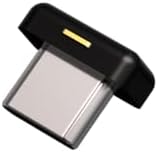
The YubiKey 5C Nano is for a specific use case: people who need a hardware key that stays permanently inserted in a laptop without creating a physical protrusion that gets bumped, caught, or noticed.
The Nano form factor is designed to sit flush with a USB-C port. Once inserted, it protrudes approximately 3mm — barely visible, not catchable on anything, not removable by casual contact. For travelers who want to leave the key inserted during work sessions without the risk of bumping it against a bag strap or table edge, this design solves a real problem.
The security model and protocol support are identical to the YubiKey 5C — FIDO2, FIDO U2F, OTP, OpenPGP, PIV. The NFC capability present in the 5C NFC is absent in the Nano, which is the trade-off for the flush form factor. Phone authentication requires a separate NFC-capable key or an adapter.
For most remote workers, the standard 5C NFC is the better choice. For enterprise users, security researchers, or anyone who keeps a key permanently in a laptop during work sessions and wants the flush form factor, the Nano addresses a legitimate practical need.
Specifications:
- Connections: USB-C (flush mount)
- Protocols: FIDO2, FIDO U2F, OTP, OpenPGP, PIV
- NFC: No
- Weight: 1g
- Dimensions: Flush with USB-C port
Who it’s for: Users who want a permanently-inserted key with a flush profile. Best paired with an NFC-capable key on the keychain for phone authentication.
How to Set Up a Hardware Security Key: Step by Step
Buying a hardware key is the easy part. Setting it up correctly across your accounts takes about an hour and the process is worth doing deliberately. Here’s the framework we use.
Step 1: Identify your critical accounts.
Start with the accounts where a breach would cause the most damage. For most remote workers this means: primary email (everything flows through this), password manager account, cloud storage (Google Drive, Dropbox, iCloud), code repositories (GitHub, GitLab), and any client-facing accounts or tools.
Make a list. Prioritize ruthlessly — you don’t need to secure every account you’ve ever created, you need to secure the ones that matter.
Step 2: Register the primary key.
Go to the security settings of each account on your list and look for “Two-factor authentication” or “Security keys.” The exact path varies by service — Google is under Manage your Google Account → Security → 2-Step Verification → Security Keys. GitHub is under Settings → Password and authentication → Security keys. Most major services are equally well-documented.
Register your primary key by following the on-screen instructions — usually insert the key, touch the contact when prompted, and confirm the registration. This takes under two minutes per account.
Step 3: Register the backup key.
This is the step most people skip and should not skip. If your primary key is lost, stolen, or damaged during a trip, you need a way to access your accounts. Register a second key on every account you secured in Step 2. Keep the backup key in a different physical location from the primary — we keep the backup in a small pouch in checked luggage (or left at accommodation) rather than on the keychain with the primary.
Some services limit the number of security keys you can register — verify this before you rely on a backup setup.
Step 4: Generate and store recovery codes.
Most services that support hardware keys also let you generate recovery codes — one-time codes that can be used if you lose both keys. Generate these codes, print them or write them on paper, and store them somewhere secure and physically separate from your devices. A locked safe, a trusted family member’s possession, or a bank safety deposit box are all reasonable options depending on your threat model.
Do not store recovery codes in your email, cloud storage, or anywhere that a compromised account could access.
Step 5: Test the setup.
Before you’re relying on this in an airport or a foreign country, test it. Log out of one of the secured accounts and log back in using the hardware key. Test the NFC authentication on your phone. If possible, test the backup key on a different device. Discover any problems while you’re somewhere that has easy fallback options.
Common Questions About Hardware Keys for Travelers
What happens if I lose the key during a trip?
This is the most common concern, and it’s the right concern to have. The answer is preparation: register a backup key before you travel, store it separately from the primary, and generate recovery codes for each secured account. If you lose the primary key, you use the backup. If you lose both, you use the recovery codes. If you lose the recovery codes as well, you contact each service’s support team — a slower process, but not impossible.
The more practically likely scenario is that the key is in a bag that you left somewhere and haven’t lost permanently. In this case, most services have a grace period before you’re fully locked out, and the NFC on a nearby backup or a trusted device can cover the gap.
Does a hardware key work offline?
Yes. The key doesn’t require an internet connection to function — it’s a cryptographic device that generates responses using stored credentials. Authentication requires the server to send a challenge and receive a response, but that exchange happens through the browser/app during normal authentication. The key itself has no connectivity requirements.
Can I use one key across multiple accounts?
Yes. A single hardware key can be registered with hundreds of accounts. There’s no per-account limit on the key side — limits are set by individual services on how many keys can be registered to a single account (usually between 5 and 25).
What if a service I use doesn’t support hardware keys?
This is a real limitation of the hardware key approach. Not every service supports FIDO2/WebAuthn. For accounts that don’t support hardware keys, continue using authenticator app 2FA — it’s substantially better than no 2FA, and the coverage gap is shrinking as hardware key support has expanded significantly in the past two years.
Check current hardware key compatibility at 2fa.directory before purchasing — this community-maintained resource lists which services support which 2FA methods.
Is a hardware key necessary if I use a VPN?
A VPN encrypts your internet traffic between your device and the VPN server, addressing one category of network-based risk. It doesn’t address phishing, credential stuffing, SIM swapping, or device compromise — the attack vectors that hardware keys specifically protect against. VPNs and hardware keys address different problems and work best used together rather than as alternatives.
The Bottom Line
The Tbilisi café incident didn’t cost us anything except an afternoon of anxiety and a renewed focus on security that should have come earlier. We got lucky with the timing of the notification.
Not everyone does. Account takeovers happen to careful, security-conscious people with strong passwords and authenticator apps. They happen because the threat model has evolved faster than most people’s security practices, and because the combination of public WiFi, frequent authentication from new locations, and the sophistication of modern phishing has created an environment where the standard remote worker security stack has real gaps.
A hardware security key costs $50. It weighs 6 grams. It fits on a keychain. It makes phishing attacks against your critical accounts mechanically impossible. It eliminates SIM swap as an attack vector. It works offline. It requires no battery.
The math is straightforward. The setup takes an hour. The protection is permanent.
If you’re reading this on a café WiFi network in a city you don’t live in, add it to your cart before you close the tab.
Quick Reference: Which Key to Buy
| Situation | Recommended Key |
|---|---|
| Most remote workers, first key | YubiKey 5 NFC (USB-A + NFC) |
| USB-C laptop user | YubiKey 5C NFC (USB-C + NFC) |
| Budget purchase / Google-primary users | Google Titan Security Key |
| Permanent laptop insertion, enterprise | YubiKey 5C Nano |
| Buying two keys (recommended) | YubiKey 5 NFC + YubiKey 5C NFC |
Updated April 2025. Hardware key compatibility with specific services changes as platforms update their 2FA support. Verify current compatibility at 2fa.directory before registering any key.
Affiliate Disclosure
NomadTechKit participates in the Amazon Associates Program. Links in this article are affiliate links — if you purchase through them, we receive a small commission at no additional cost to you.
The hardware keys reviewed in this article were purchased at retail price. No manufacturer provided samples or had any involvement in the editorial content. Yubico and Google are not partners or sponsors of NomadTechKit. We recommend the YubiKey as the primary choice because it performed best in our testing and has the broadest compatibility — not because of commission rates, which are identical across the products listed.
If you have questions about hardware key setup or compatibility with specific services, reach out through our contact page. Security questions are ones we take seriously and try to answer thoroughly.